
Moving from Lightroom Classic to Mobile: Success!
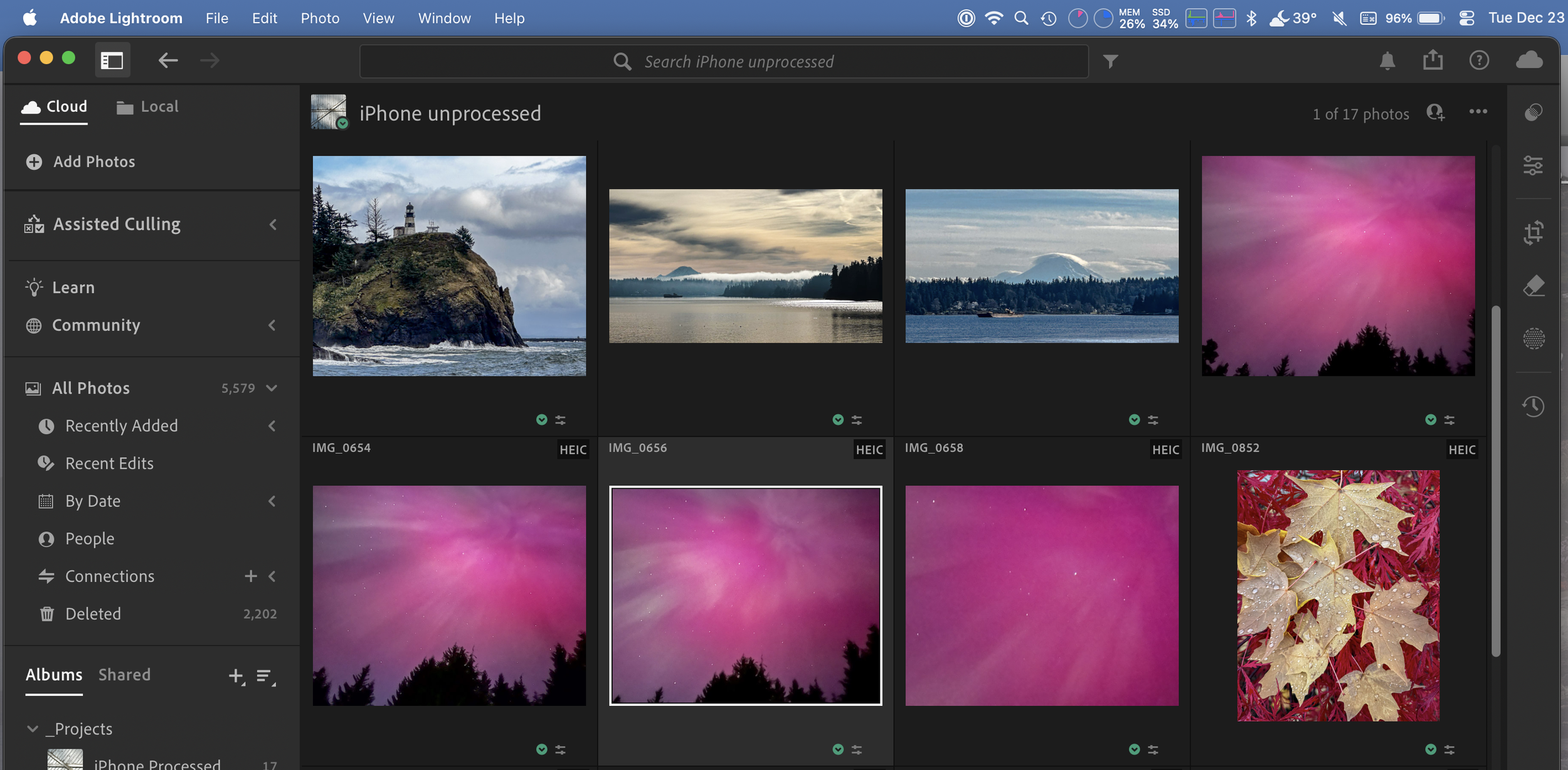
It’s been a year since I made the decision to move my images and processing from Lightroom Classic, which I’ve used since version 2. I did a first update on this last April, and it seems a good time to talk about this again.
As a quick summary, I decided to make this change for a few reasons, but the primary one is that the cloud aspects of Lightroom (mobile — I’ll call it Lightroom and Lightroom Classic Classic from now on), specifically the ability to add images to the catalog and then use/view/edit them on whatever device I’m using at the moment. This has been a big win for me, since Classic lived on the Mac in my office downstairs, and that meant I couldn’t easily use it or the images when I’m elsewhere in the house or on the road. Today, I do a lot of my work on my laptop, sitting upstairs in the great room with the family.
The transition was fairly painless. much easier than I expected. I experimented with various ways to do it — and while there is a migration capability available, I chose to do it manually. For my images in 2022-present, I imported the RAW/DNG files into Lightroom. For older images, I exported the processed images as TIFs in full size and maximum quality. After about six months, I felt comfortable enough with this that I archived the Classic images to my NAS along with the catalog files, and removed Classic from my systems. If for some reason I want to reprocess an image, I can always pull it off the NAS and add it to Lightroom, but to date, I haven’t needed to do that once.
It took me some time to get completely comfortable processing images in Lightroom — the capabilities are very similar between the two platforms but the interfaces are a bit different. Over time, though, I have gotten very comfortable in Lightroom and in many ways prefer it to Classic. I do, occasionally, run into limitations in Lightroom compared to Classic, mostly, I think, in how Smart Folders are implemented, something I used extensively in Classic.
A big help in really learning the details of Lightroom goes to photographer Brian Matiash, both for his YouTube channel and his online course Lightroom Everywhere. There’s a lot of really good, well-explained information here that really sped up my learning curve in the program.
After a year in the program, I consider the migration a complete success; I have a workflow that is smooth and efficient — my average time for processing an image is about the same as with Classic. If you are a Classic user and curious about making this change, the only issue you might run into is if you use Classic Plug-ins; those are not supported in LIghtroom, although there are some easy workarounds: when I first shifted I was using Topaz AI to do de-noise and sharpening by exporting a processed image, processing them in Topaz, then importing the sharpened images back into Lightroom. I have since shifted to doing de-noise and sharpening in Lightroom and am quite happy with the results, so I’m no longer using Topaz, saving me one annual license payment.
I expected a bit more pain in the migration, but to be honest, Lightroom was very much a “It Just Works” solution almost from day 1. I have made a number of changes to my workflow, primarily to make things simpler and more efficient — this kind of migration is a great time to evaluate whether your current work habits make sense, or because that’s how you’ve always been doing them.
My bottom line: this was a very painless and absolute success. With the exception of the occasional limitation in playing with Smart Catalogs, it’s really hard to think of anything I try to do in Lightroom that would be faster or easier in Classic — and now I don’t have to go downstairs to the office to work on my new images; I can sit up here on the laptop and work on things whenever I want, knowing my images will be on all my devices — including the iPad and iPhone — whenever I want to access them. That’s a big win for me.